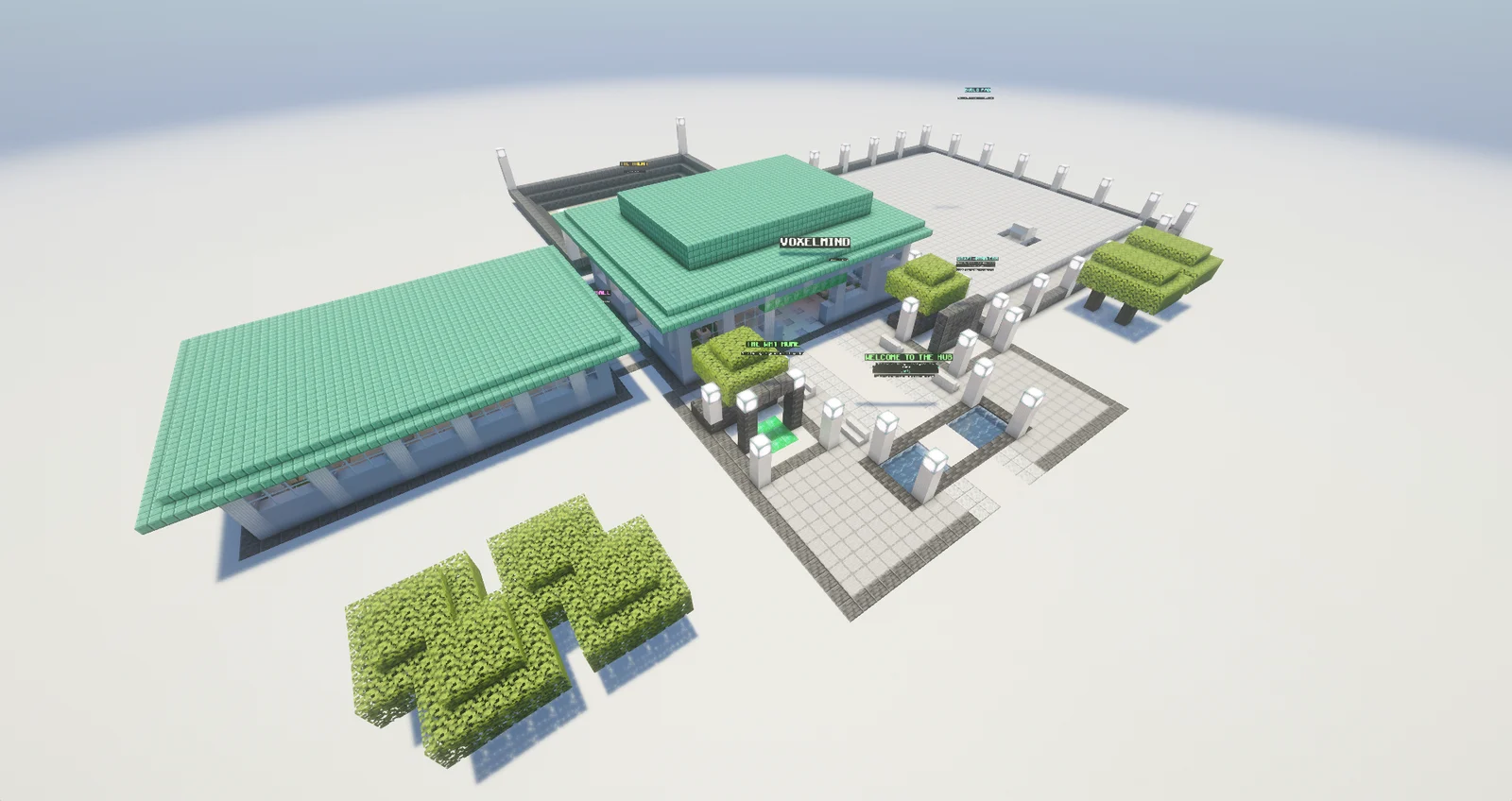
How to Add an AI Bot to Your Minecraft Server
The setting every guide tells you to flip is online-mode=false. Almost none of them tell you what it actually does to your server, or how to close the hole it opens.
Guides, part three. Part one compared the AI companion mods, part two covered singleplayer setup. This one is about servers, where the same question has a very different answer.
Three different things people call "a bot"
Search for how to add a bot to a Minecraft server and you get three unrelated answers stacked on top of each other. Sorting them out first saves an hour of following the wrong instructions.
- An AFK bot. A script that logs in and stands still so a free host does not shut the server down for inactivity. It does nothing else. This is what most Aternos guides mean.
- A plugin NPC. A villager-like entity added by a server plugin (Citizens and friends). It exists inside the server process, follows a script you configure, and cannot do anything the plugin does not implement.
- An AI player. A separate client that connects over the network the same way you do, and decides what to do with a language model behind it. It mines, builds, fights and talks. This is the one people actually mean when they say "AI bot", and it is the only one of the three that needs the setting below.
Why an AI player needs online-mode=false
This is the part worth understanding, because it explains every error message you will hit.
When you join a server, your client proves who you are against Mojang's authentication servers. The server asks Mojang "is this really that account", Mojang says yes, and you are let in under your verified name and UUID. That handshake is what online-mode=true means, and it is the default.
An AI player has no Mojang account. It is a program holding a network connection, not a person who bought the game. When it tries the handshake, there is nothing on the other side to verify, and the server rejects it. The message you see is usually a variation of "failed to verify username" or a disconnect with no reason at all.
Setting online-mode=false tells the server to skip that check and accept whatever name a connecting client claims. That is the entire trick. Every AI companion mod that runs its bot as a real player needs it, and any guide that promises otherwise is describing a plugin NPC, not an AI player.
What that setting actually costs you
Here is the part the top search results leave out, and it matters more than the setup itself.
With authentication off, the server has no way to tell who anyone is. Anyone who knows your address can connect under any name, including yours and including your admins'. If your operator account is called Steve, a stranger types Steve, and the server hands them operator. This is not a theoretical risk, it is the routine way small offline-mode servers get wiped.
Two things reduce it, and you want both:
- Set
whitelist=trueand keep the address private. The whitelist blocks every name that is not on it, which stops opportunistic joins. Be clear about its limit though: in offline mode the whitelist matches names, and names are exactly what an attacker can choose freely. It raises the bar, it does not authenticate anyone. - Add a login plugin if the server is public. On Paper and Spigot there are well-established authentication plugins that make offline-mode players register a password and log in with it. That restores real identity, at the cost of everyone typing a password. If your server is public and offline, this is not optional.
If the server is you and four friends and nobody advertises the address, whitelist plus a private address is a reasonable place to land. If it is a public SMP, treat offline mode as a decision that needs a plugin behind it.
Aternos, step by step
Aternos exposes the setting in the panel, so this takes about a minute.
- Stop the server. The setting will not apply while it runs.
- Options → Server settings, find Online mode and switch it off.
- In the same screen, switch Whitelist on.
- Players → Whitelist, add your own name and everyone who plays with you. Add the bot's name too, or it will be blocked by the very setting you just turned on. This is the single most common reason a bot silently fails to join after a "correct" setup.
- Start the server and note the address.
Your own server, or another host
On a box you control, the same two lines live in server.properties next to the server jar:
online-mode=false
white-list=true
Note the spelling. The property in the file is white-list with a hyphen, while the in-game command is /whitelist without one. Edit the file with the server stopped, since a running server rewrites it on shutdown and will overwrite your change. Then add names with /whitelist add <name> once it is up.
Most paid hosts (Apex, Shockbyte, BisectHosting and similar) put the same toggle in their panel under server settings. If you cannot find it, look for "online mode", "authentication", or "cracked" in their documentation. All three refer to the same flag.
What does not work, and why
- Minecraft Realms. Realms does not let you change authentication, by design. There is no setting, no workaround, no plugin. An AI player that joins as a network client cannot connect to a Realm. If Realms is where you play, a hosted world elsewhere is the only path.
- Bedrock Edition. Different protocol entirely. A Java bot cannot connect to a Bedrock server, and the mods discussed here are Java only.
- Servers you do not administer. If you cannot change
server.propertiesor the panel setting, you cannot add an AI player. Ask the owner, or play in your own world.
Doing it with VoxelMind
Once the server accepts offline connections, the flow is short. Install the Fabric mod for your Minecraft version, join your server the normal way, press V, and spawn your companion. It connects to the same server you are on and joins as its own player, so you will see it in the player list next to you.
Two notes specific to servers. First, put the companion's name on the whitelist, as above. Second, singleplayer does not need any of this: the mod opens your world to LAN and builds a tunnel to our servers itself, so there is no port forwarding and no server setting to change. The offline-mode question only exists once a dedicated server is involved.
If you would rather skip the server question completely, every account also gets a persistent world on our own server that needs no mod and no configuration.
When the bot still will not join
In roughly this order, because that is the order the failures actually occur in:
- Is the whitelist blocking it? Far and away the most common cause after a fresh setup. Add the bot's exact name.
- Did online-mode actually apply? It only takes effect on a restart. A panel that shows the new value is not proof the running server has it.
- Can you reach the server yourself right now? A bot cannot join a server that is asleep, and free hosts sleep aggressively.
- Are you logged in to the mod?
/vm statusreports the connection state. - Is the server modded in a way that rejects vanilla clients? Setups that require client-side mods turn away anything that does not carry them, and a bot connects as a plain client.
Still stuck, or hit something this guide does not cover: tell us on Discord. Several of the fixes in the mod exist because one person reported exactly one of these.
Try VoxelMind free
An AI companion that remembers you — free to play, no setup beyond the Fabric mod.